¶ Domain verification for email campaigns
¶ How to add necessary TXT records for domain verification
When confirming a domain for email campaigns, it is necessary to make changes to the DNS records of your domain.
First, you need to find out which DNS management system is used for your domain. This can be your domain hosting control panel or a separate DNS management service.
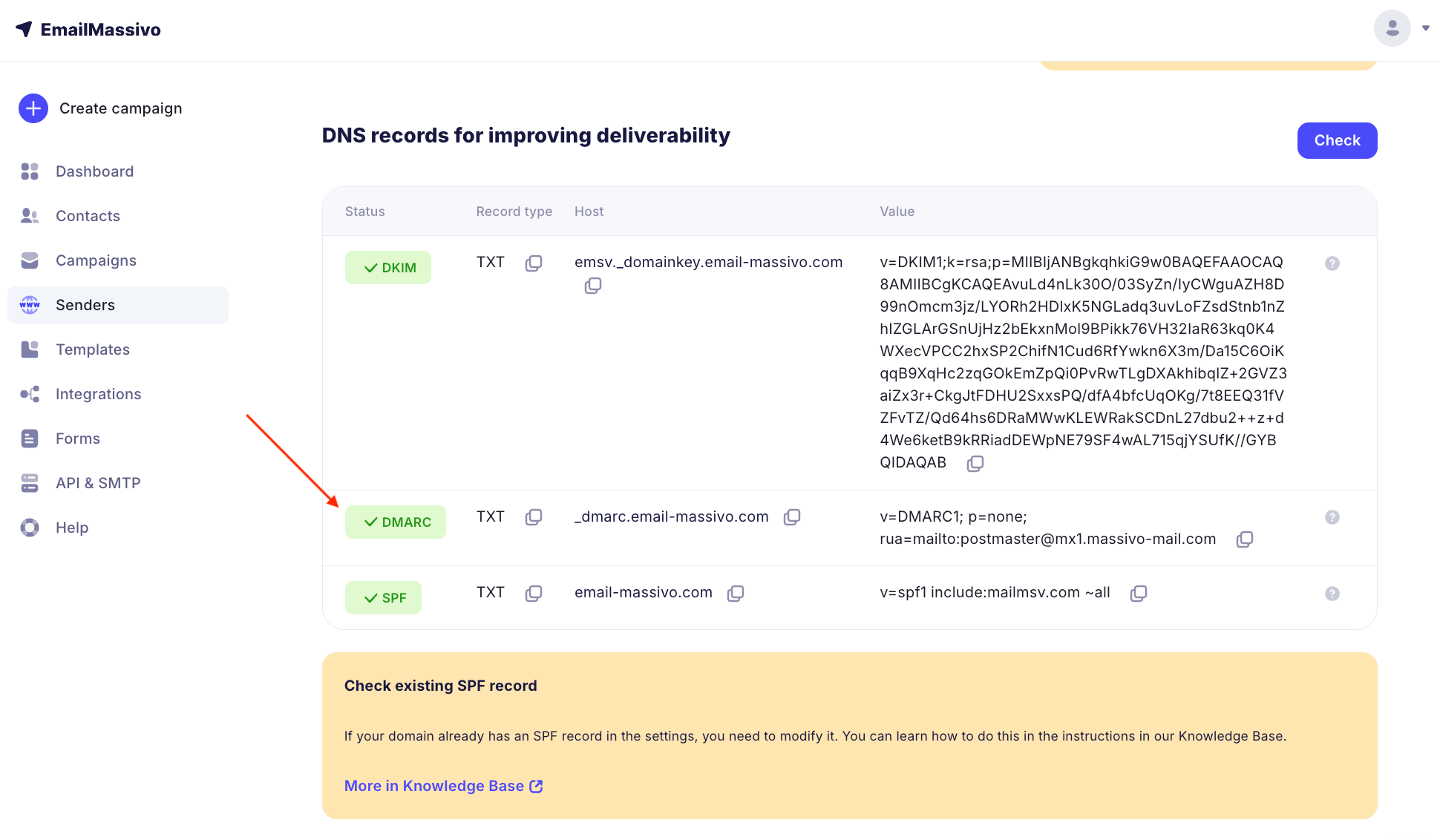
For domain verification, you need to place three TXT records on your registrar or hosting provider side.
These are three records:
- DKIM
- SPF
- DMARC
¶ DKIM record
- Log in to the DNS management system for your domain. Find the section or option for editing DNS records. Usually this can be "DNS Records" or "Manage DNS".
- Find adding a new record.
- Select type of new record TXT.
- In the host section for the new record, specify:
mdmdmail._domainkey.namesite.com
(wherenamesite.comis your domain address). - In some cases, the panel will automatically add the domain address. Then you need to specify only in the host field:
mdmdmail._domainkey - In the record value field, paste all content from the "Value" section in EmailMassivo.
Important: any distortions in the value (for example, extra spaces) can cause the record to work incorrectly.
What to do if the registrar doesn't allow more than 225 characters
Save the changes and publish them if your DNS management system additionally requires this.
Wait for the DNS record changes to update. This can take from several minutes to several hours.
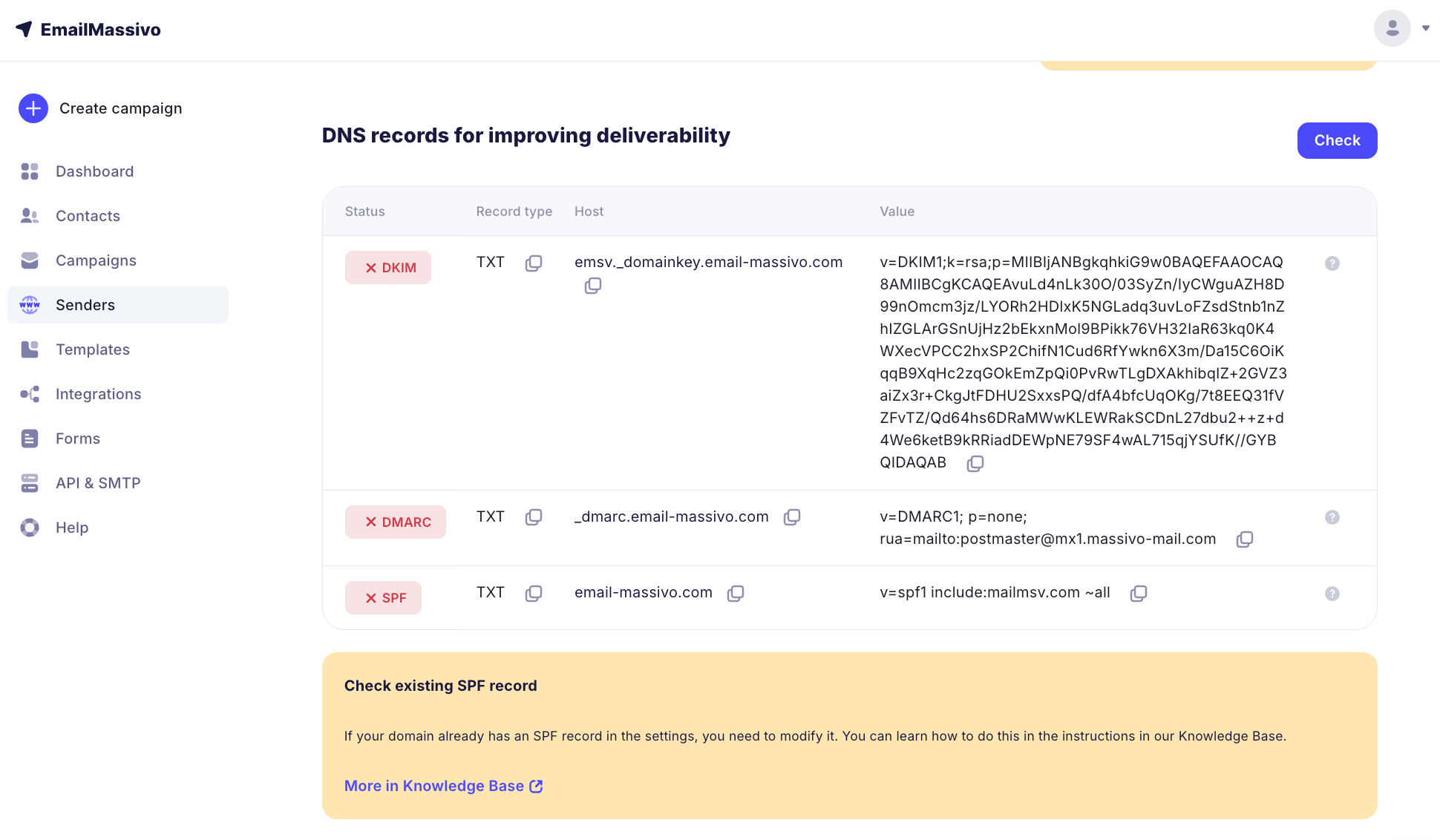
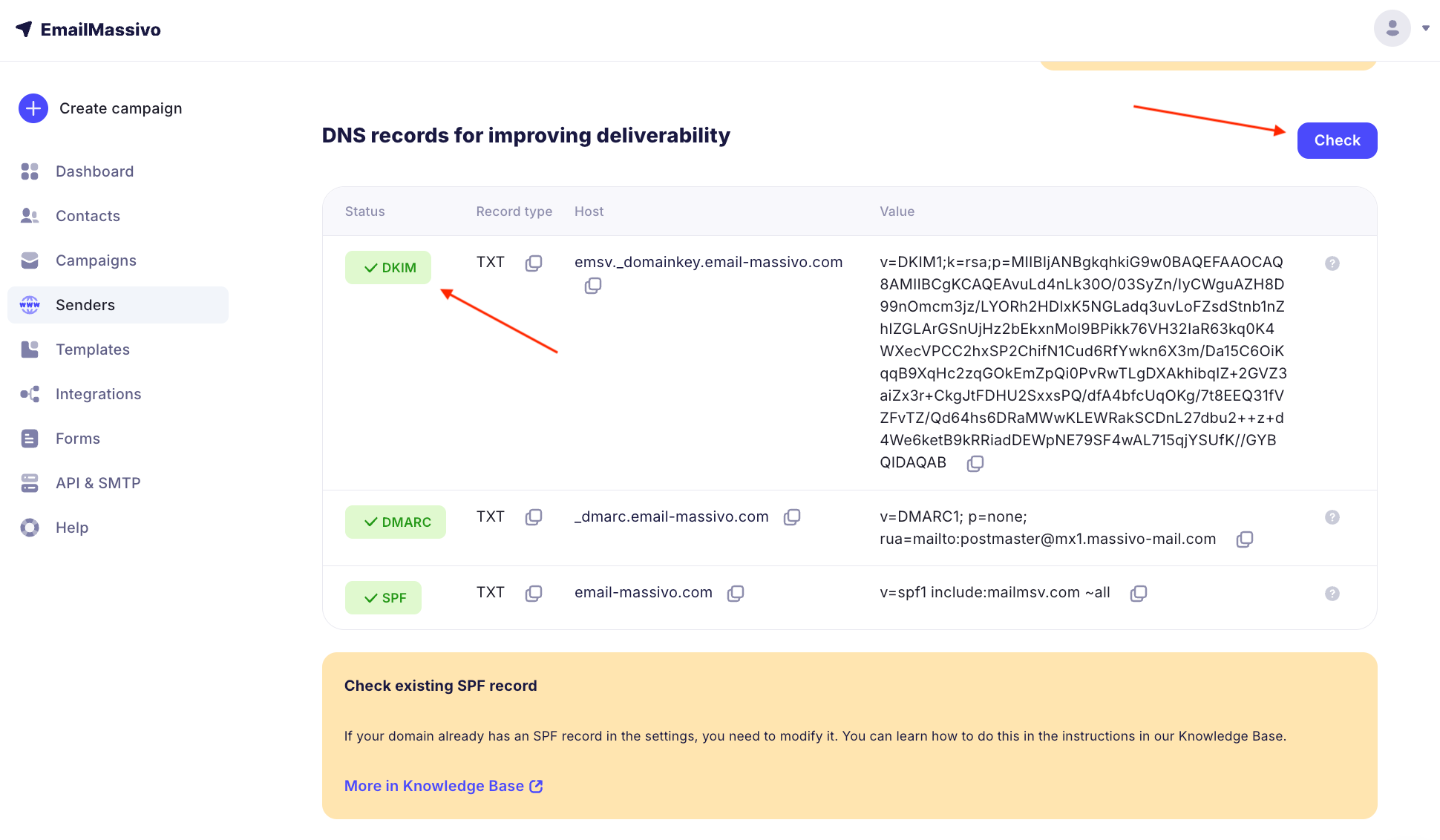
If after clicking "Check" in the EmailMassivo control panel the checkmark becomes green — it means everything is entered correctly and the changes have taken effect.
¶ SPF record
Log in to the DNS management system for your domain. Find the section or option for editing DNS records. Usually this can be "DNS Records" or "Manage DNS".
Check if you already have a record with SPF value in the name. For a domain, such a record can only be one. If you duplicate it, this will lead to errors. If there is no record, then you will need to create a new one. If there is one, it needs to be modified.
¶ How to add a new record
- Find adding a new record.
- Select type of new record TXT.
- In the host section for the new record, specify:
namesite.com
(wherenamesite.comis your domain address). - In some cases, the panel will automatically add the domain address, then you need to specify only the symbol in the host field:
@
or leave the field empty. - In the record value field, paste all content from the "Value" section in EmailMassivo:
v=spf1 include:mailmsv.com ~all
¶ How to edit an existing record
Enter the record editing mode and add this string to the value:
include:mailmsv.com
For example, if you had:
v=spf1 include:domain.com ~all
It should become:
v=spf1 include:mailmsv.com include:domain.com ~all
Note that the record may have other specific values, check if you have them.
If your SPF has a record for Gmail you should modify it this way:
v=spf1 include:_spf.google.com include:mailmsv.com ~all
Save the changes and publish them if your DNS management system additionally requires this.
Wait for the DNS record changes to update. This can take from several minutes to several hours.
If after clicking "Check" in the EmailMassivo control panel the checkmark becomes green — it means everything is entered correctly and the changes have taken effect.
¶ DMARC record
Log in to the DNS management system for your domain. Find the section or option for editing DNS records. Usually this can be "DNS Records" or "Manage DNS".
Check if you already have a record with _dmarc value in the name. For a domain, such a record can only be one. If you duplicate it, this can lead to errors. If you already have a custom configured record, you can leave it as is. For EmailMassivo, it's important to simply have such a record for the domain.
If there is no record — it needs to be added.
- Find adding a new record.
- Select type of new record TXT.
- In the host section for the new record, specify:
_dmarc.namesite.com(wherenamesite.comis your domain address). - In some cases, the panel will automatically add the domain address, then you need to specify only in the host field:
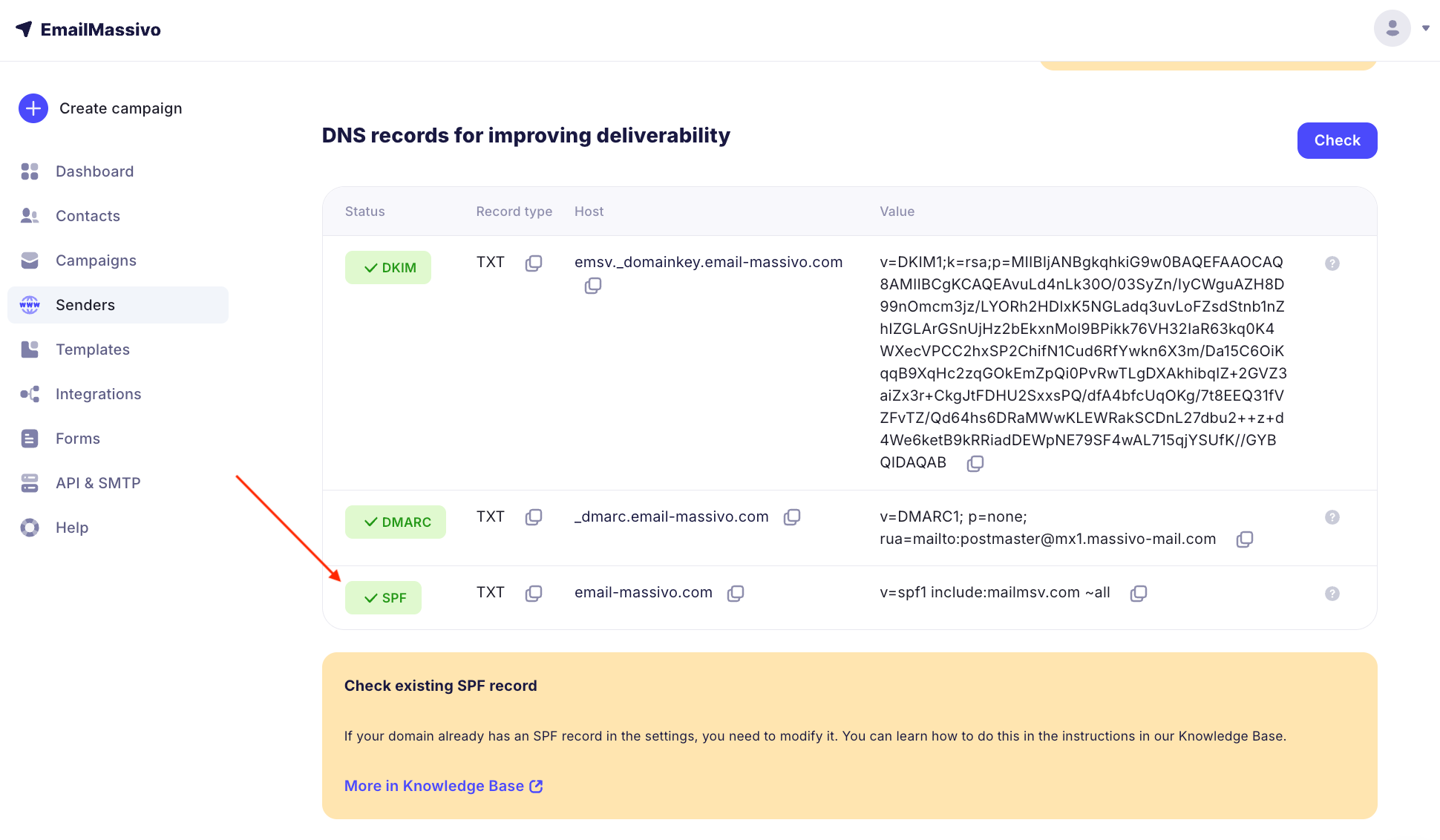
_dmarc - In the record value field, paste all content from the "Value" section in EmailMassivo:
v=DMARC1; p=none; rua=mailto:postmaster@mx300.massivo-mail.com
- Save the changes and publish them if your DNS management system additionally requires this.
Wait for the DNS record changes to update. This can take from several minutes to several hours.
If after clicking "Check" in the EmailMassivo control panel the checkmark becomes green — it means everything is entered correctly and the changes have taken effect.