¶ API Statistics
To view statistics for connected APIs, go to the API section and select the desired API key.
On the statistics page you can filter sends by time range.
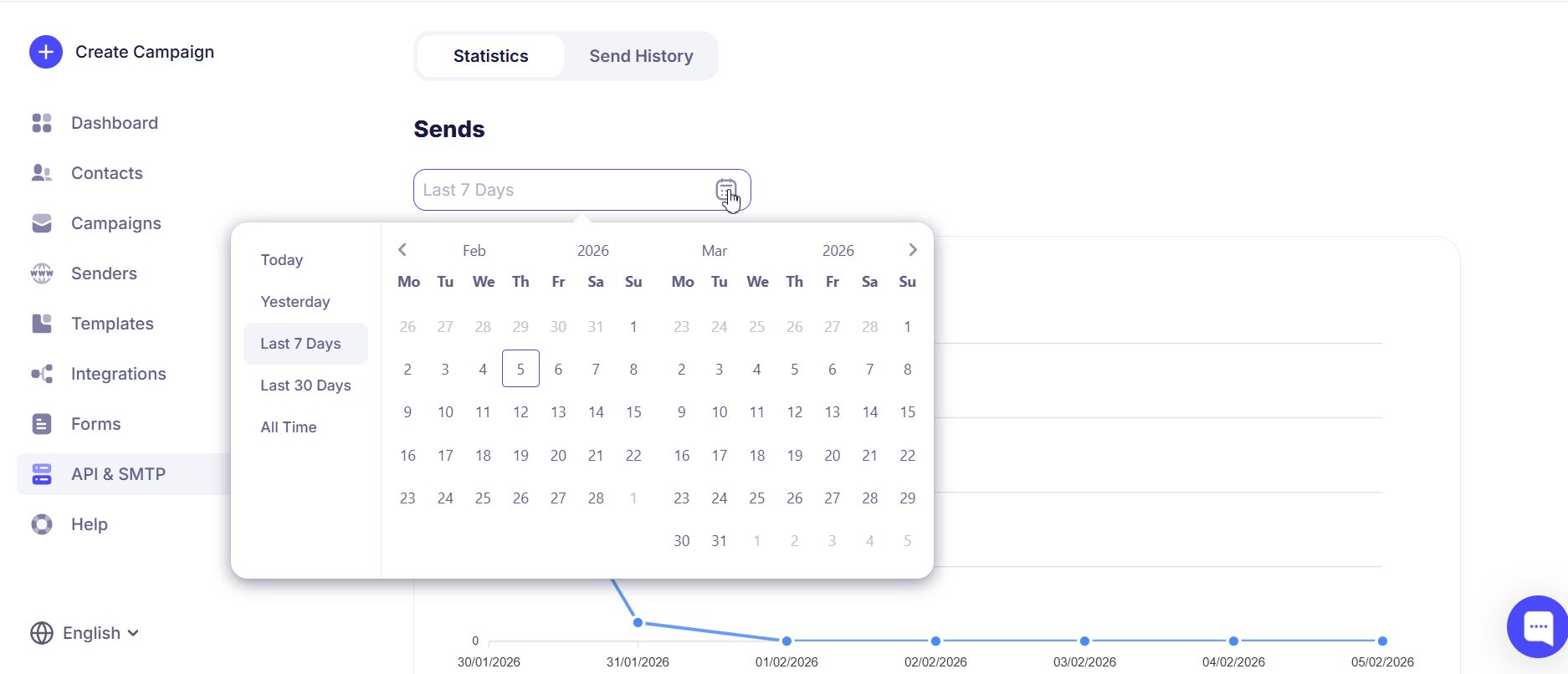
On the statistics page you will see 4 key metrics for the API key: Opens, Clicks, Errors, and Unsubscribed and complaints.
¶ OR formula
Opens show what share of recipients opened your email.
Formula:
OR = (N opens / N sent emails)*100%
¶ CTOR formula
CTOR shows the ratio of users who clicked a link to users who opened the email.
Formula:
CTOR = (N clicks / N opened emails)*100%
¶ Bounce Rate formula
All metrics for unsubscribes, errors, bounces, and spam complaints are calculated the same way.
Formula:
Metric = (N errors or other issues / N delivered emails)*100%
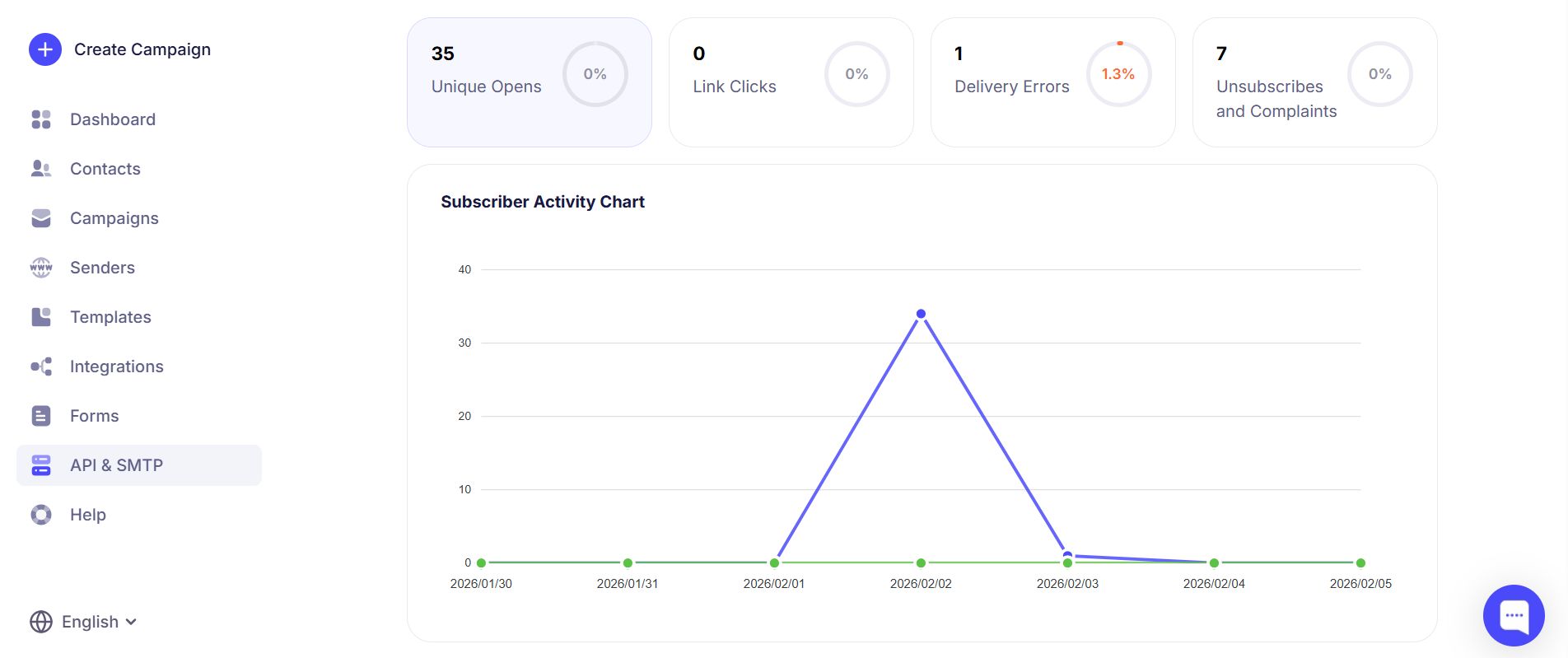
Below is the subscriber activity chart.
¶ Clicks
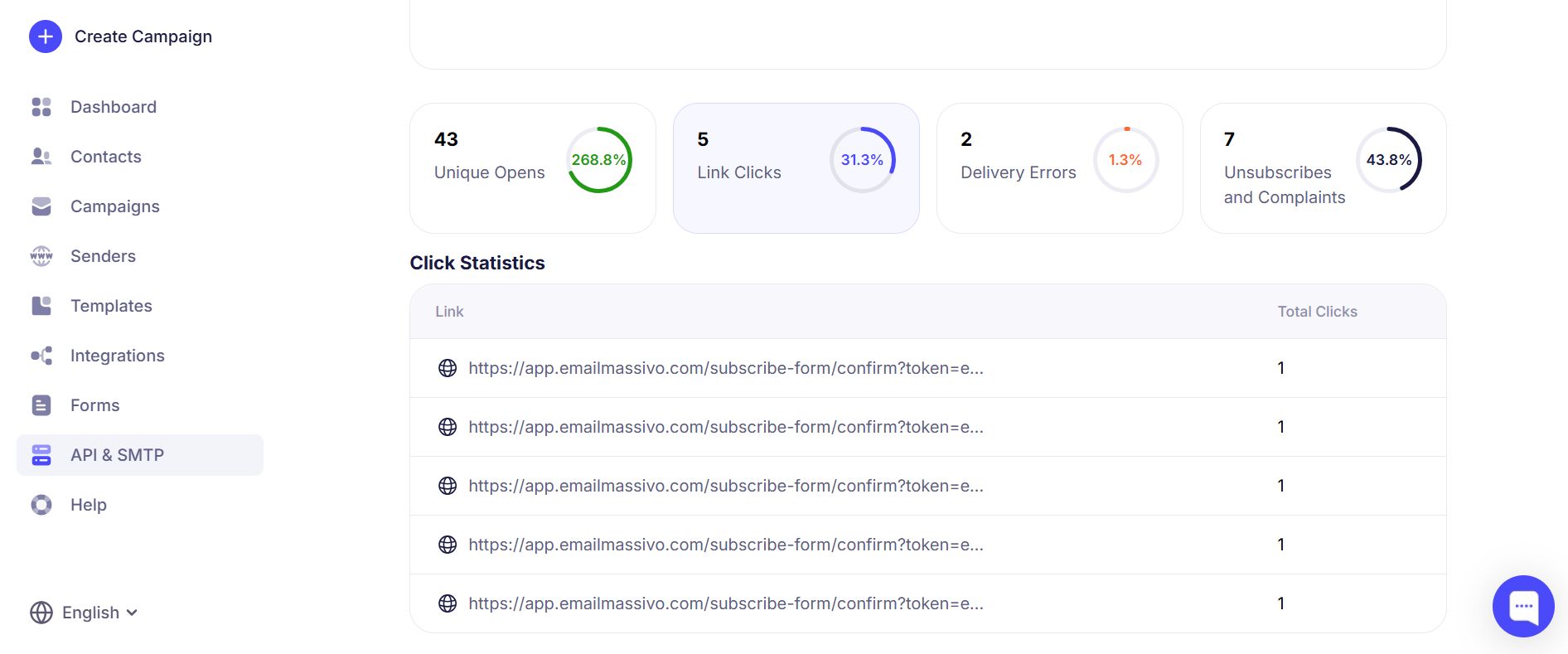
To analyze link clicks, go to the Clicks tab in the API key statistics. On that page you can view a list of all links in the email with the number of clicks.
¶ Errors
The Errors section helps you find out the reasons for delivery errors for the API key.
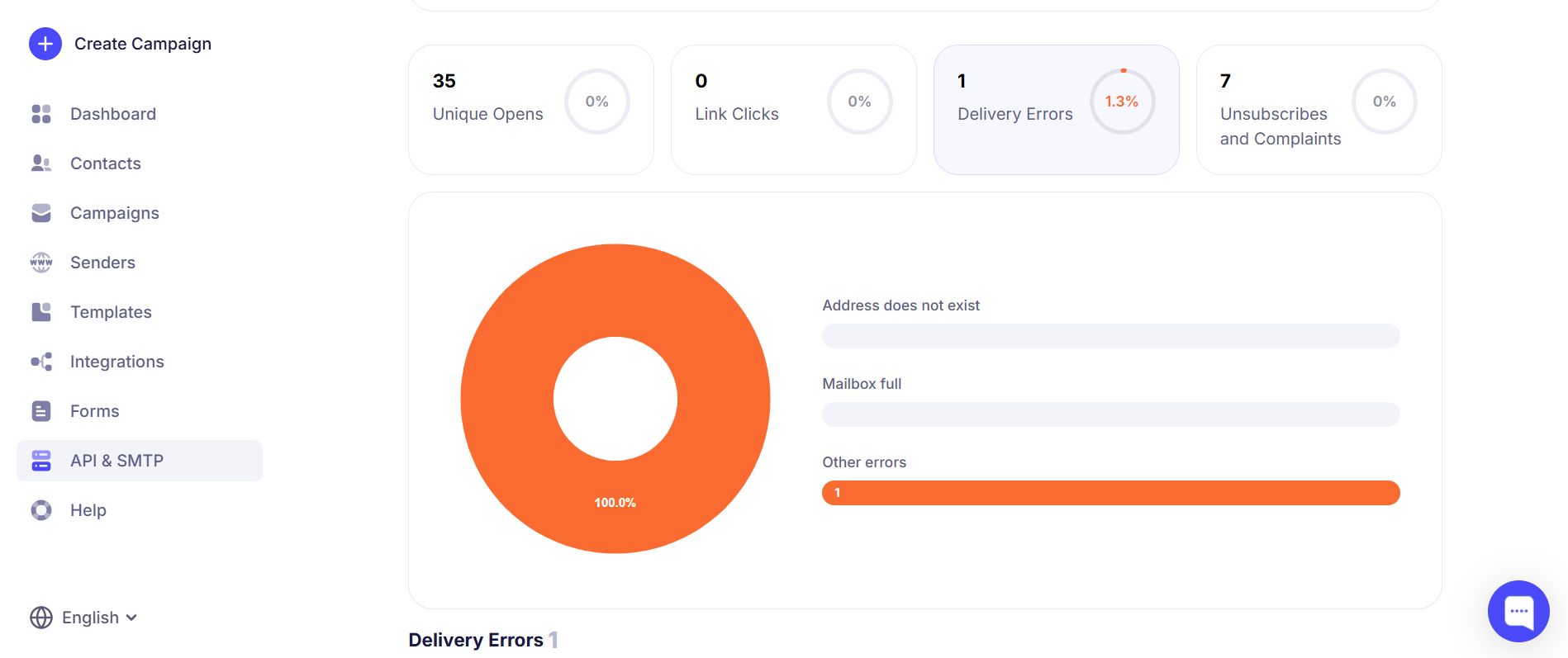
In the table below you can review all delivery errors in detail.
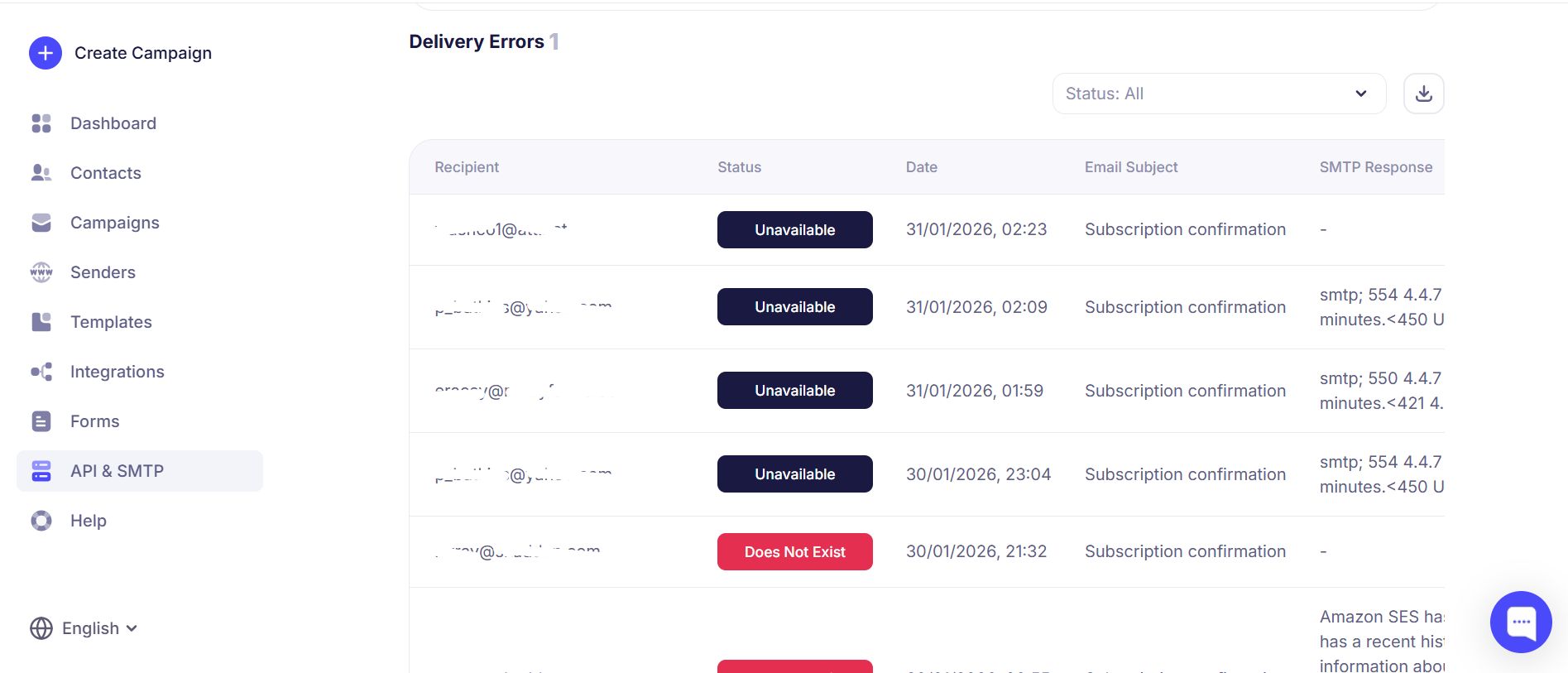
Error statuses:
- Does not exist;
- Unavailable;
- Mailbox full.
In the SMTP response column you can see error codes and descriptions so you can fix them and ensure successful delivery.
If you get errors (e.g. a block) from email providers such as Gmail, or Yahoo, your domain has likely been added to the spam filter and you need to warm up the domain. Email providers are cautious about large volumes of mail from an unwarmed domain and may place it in spam or reject it and block the domain at the technical level.
If you cannot determine the cause of suspicious metrics, contact our support team and we will help you.
¶ Send history
In the Send history section you can also filter sends by time range, senders, and statuses.
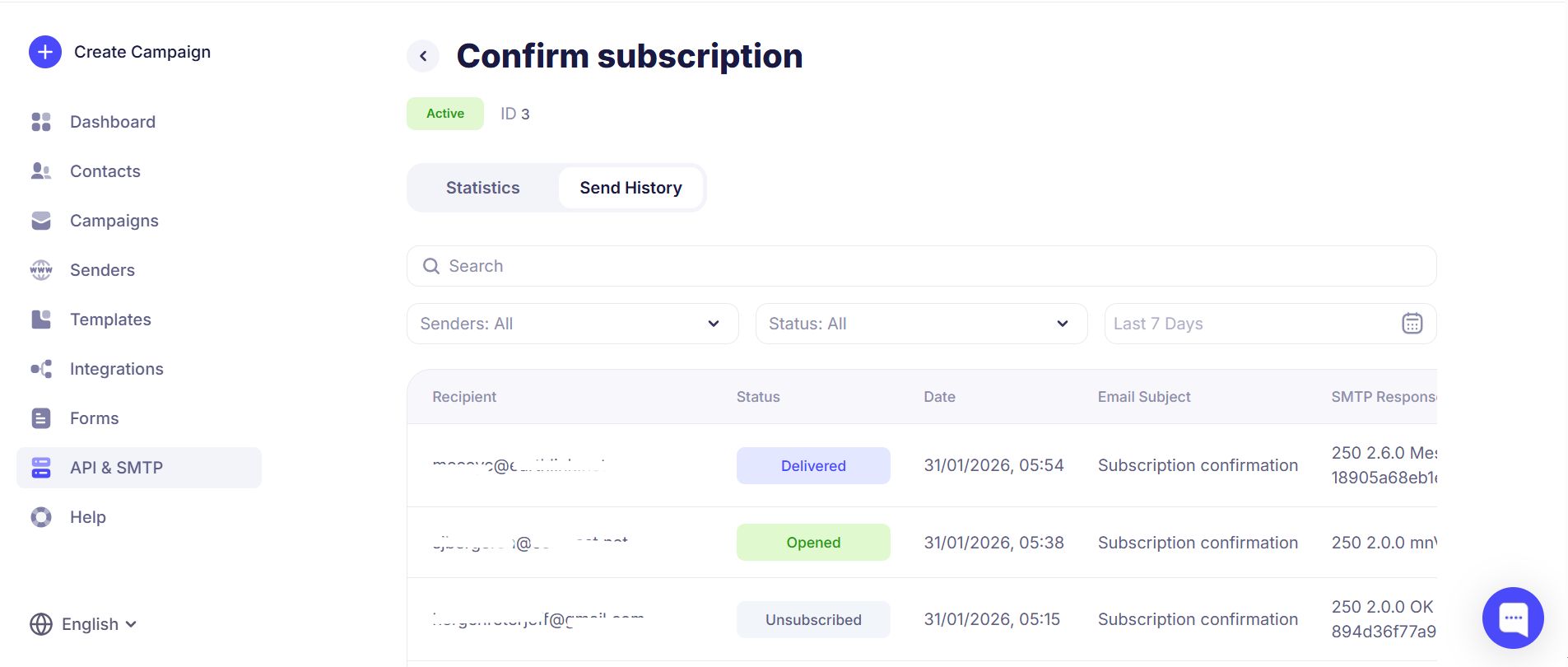
On the page with connected APIs, as well as in each key’s section, you can view the current key status: Active, Blocked, or Not activated.