¶ How to Upload Unsubscribed Contacts
If you have your own database of unsubscribed contacts (from another source, service, or your own website) in EmailMassivo, you can independently specify addresses that need to be unsubscribed. To do this, open the "Contacts" tab and go to the "Tools" section.
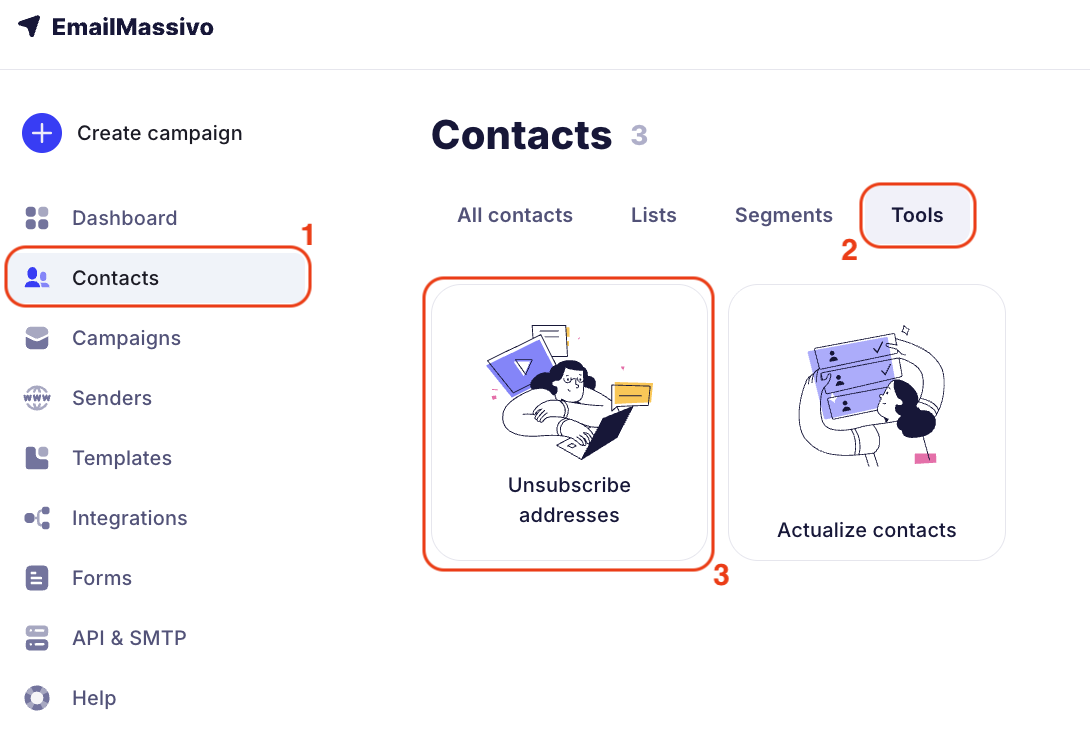
You can upload unsubscribed contacts from a file or enter data manually:
¶ Uploading Unsubscribed Contacts from a File
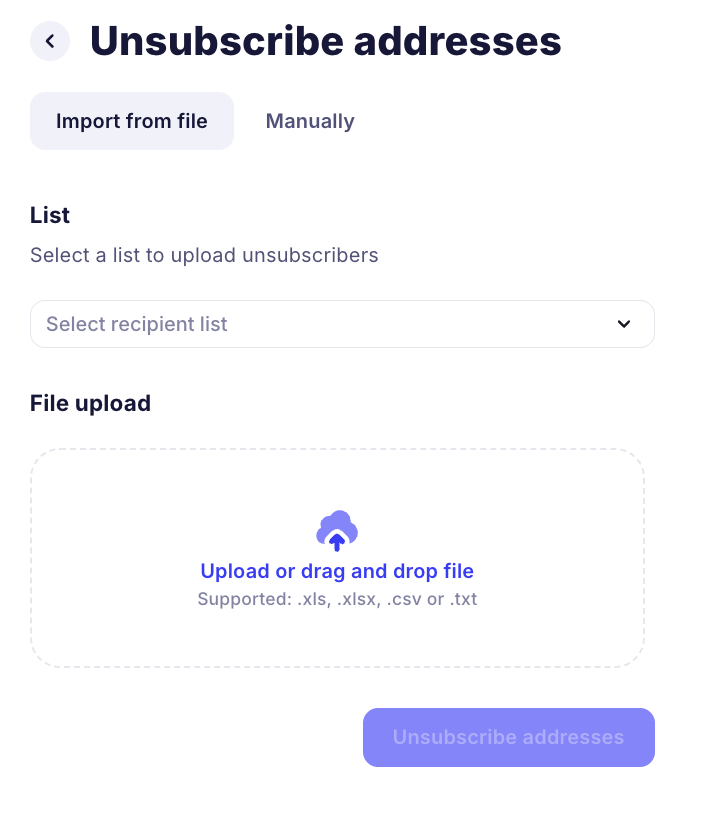
Prepare a file with the unsubscribed contacts database in TXT, CSV, XLS or XLSX format.
This file should contain only email addresses, without additional columns and variables. For text files, each email should be specified on a new line. For table format, each email should be in a separate cell of one column.
When importing contacts from a file, select a list and click on the area that says "Upload or drag a file" and select the document on your device, or drag it with the left mouse button into this area.
Select the recipient list for uploading unsubscribed contacts.
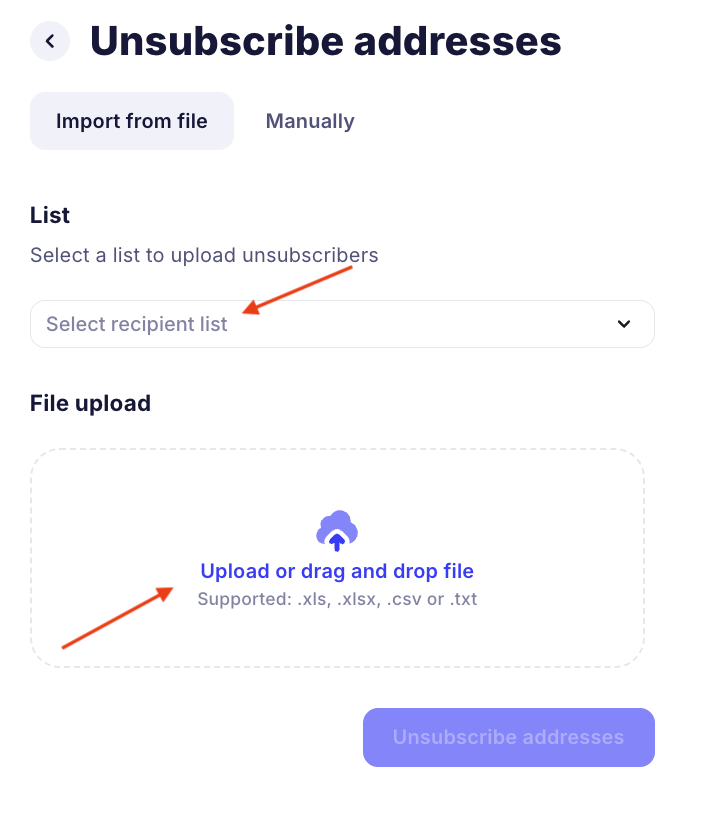
When you have uploaded the file and selected the list, click the "Unsubscribe addresses" button:
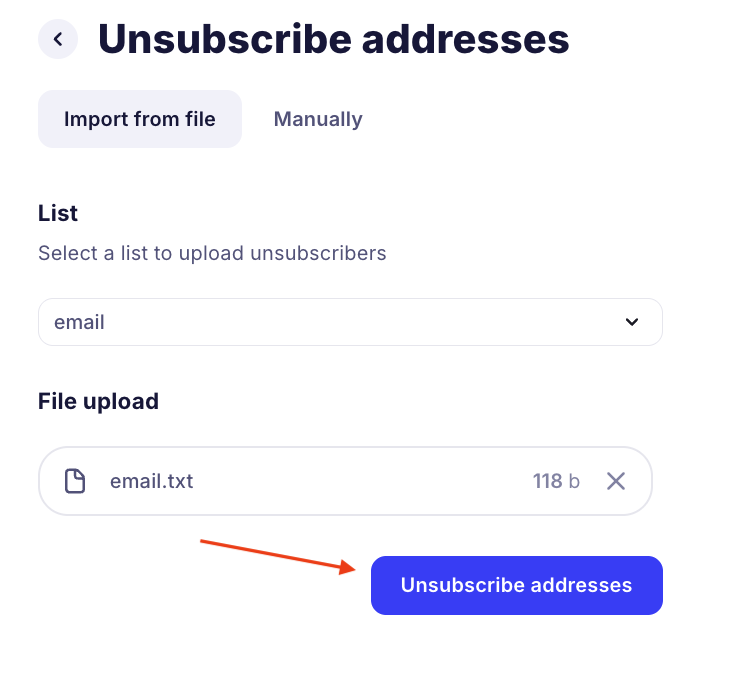
¶ Uploading Unsubscribed Contacts Manually
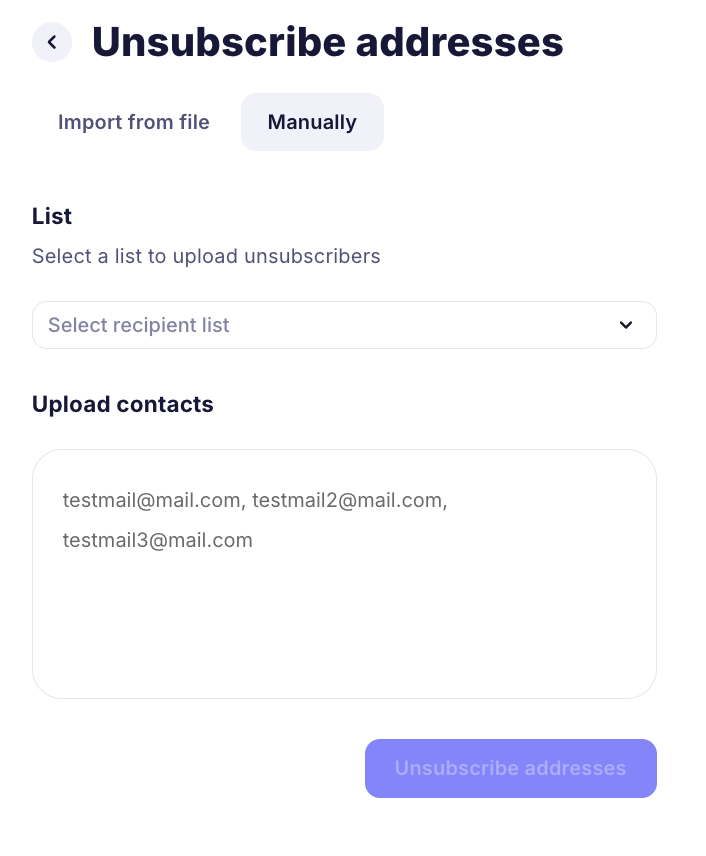
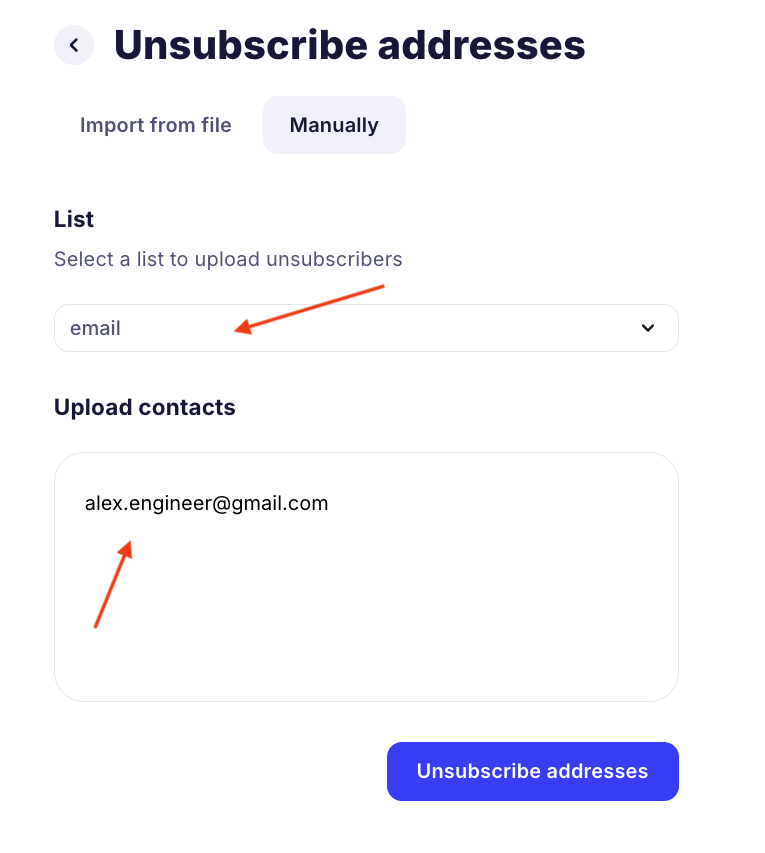
When uploading unsubscribed contacts, select the "Manual" method. Add unsubscribed contacts to the "Upload Contacts" field, and also select the list where they will be placed. Write each unsubscribed contact on a new line.
Select the recipient list for uploading unsubscribed contacts.
When you have added unsubscribed contacts and selected the list, click the "Unsubscribe addresses" button:
Done! Unsubscribed contacts have been added to your account:
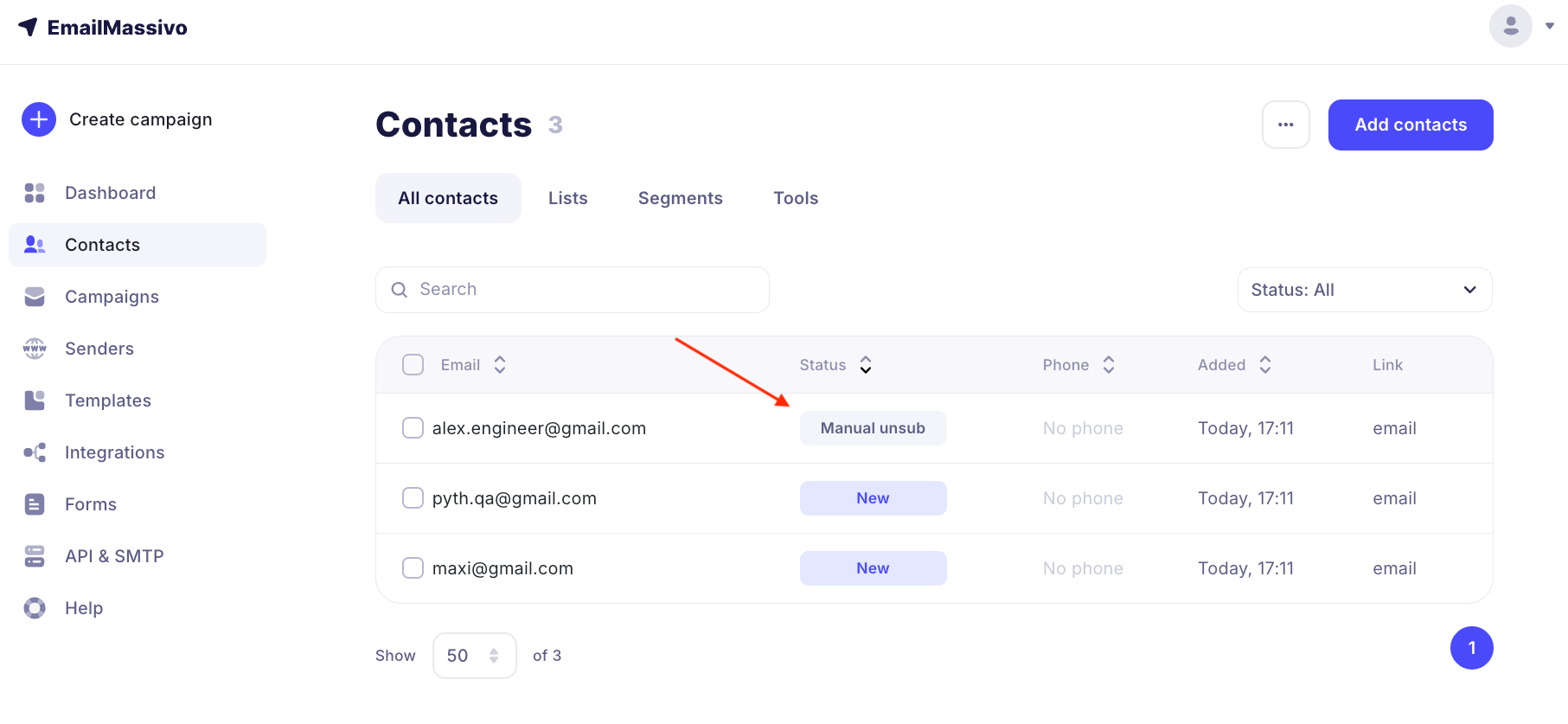
Now campaigns will not be sent to these accounts, and they will not be counted in recipients.
Unsubscription applies to the contact within the entire account. If a contact is in multiple lists, to unsubscribe them, it's enough to upload them by specifying any of these lists. Or you can create a separate list where you can store all your unsubscribed contacts.
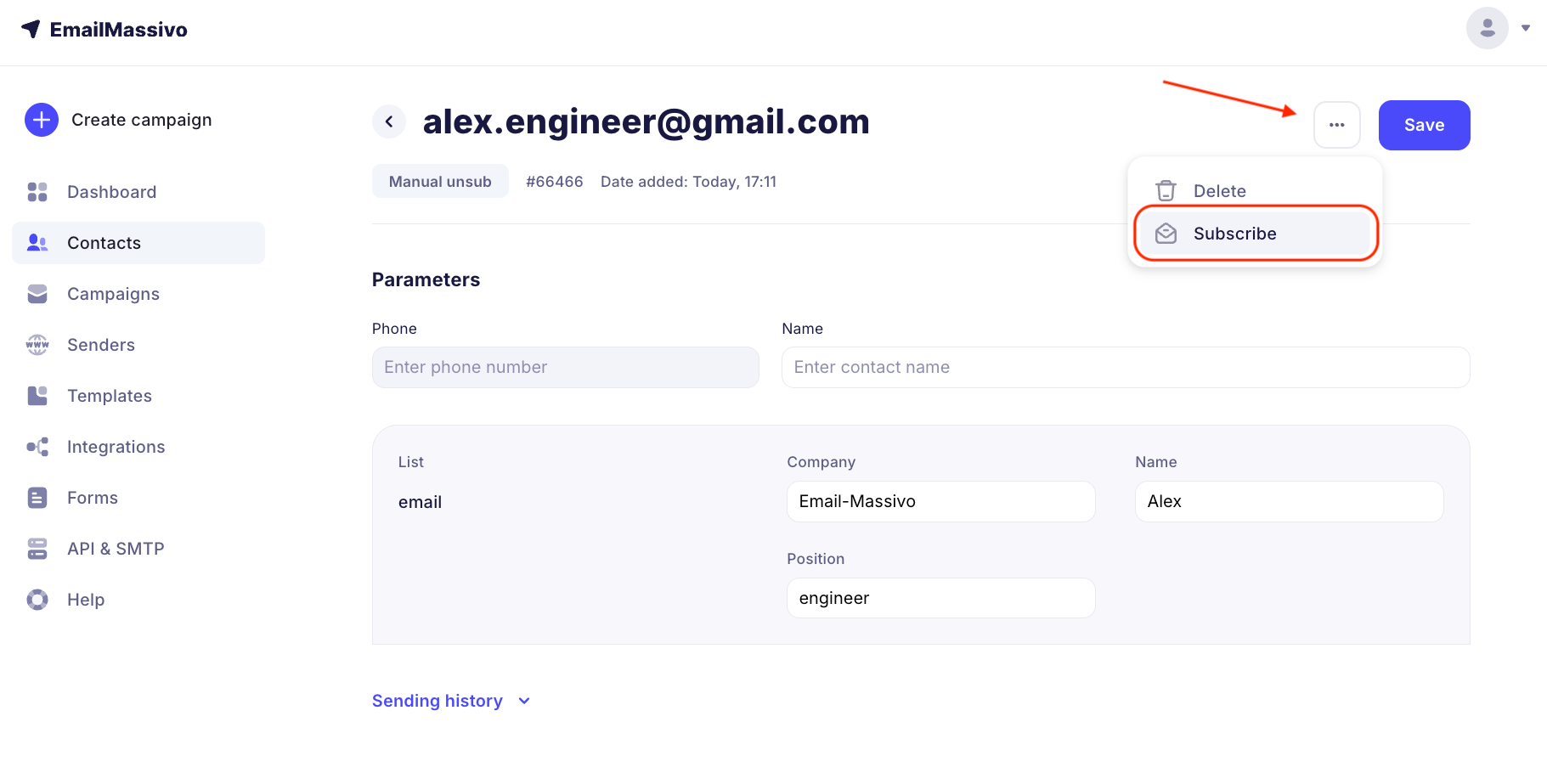
If you wish, you can resubscribe unsubscribed contacts. To do this, select the contact you want to subscribe, click on the three dots → "Subscribe":
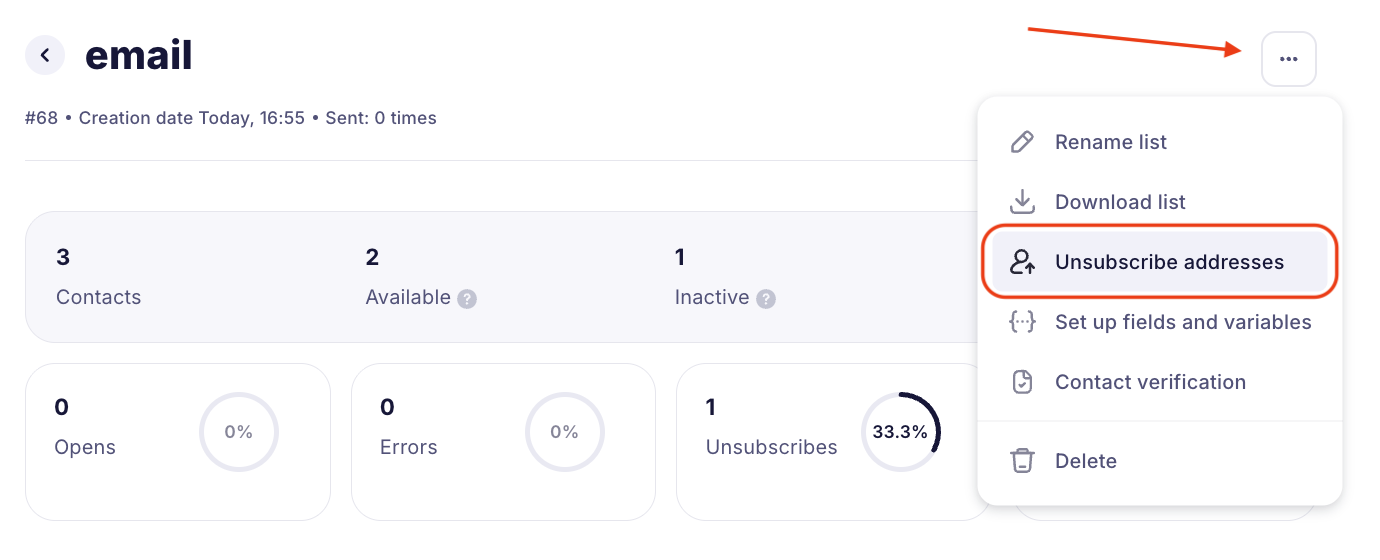
You can also unsubscribe addresses from a specific list:
¶ Check Import History
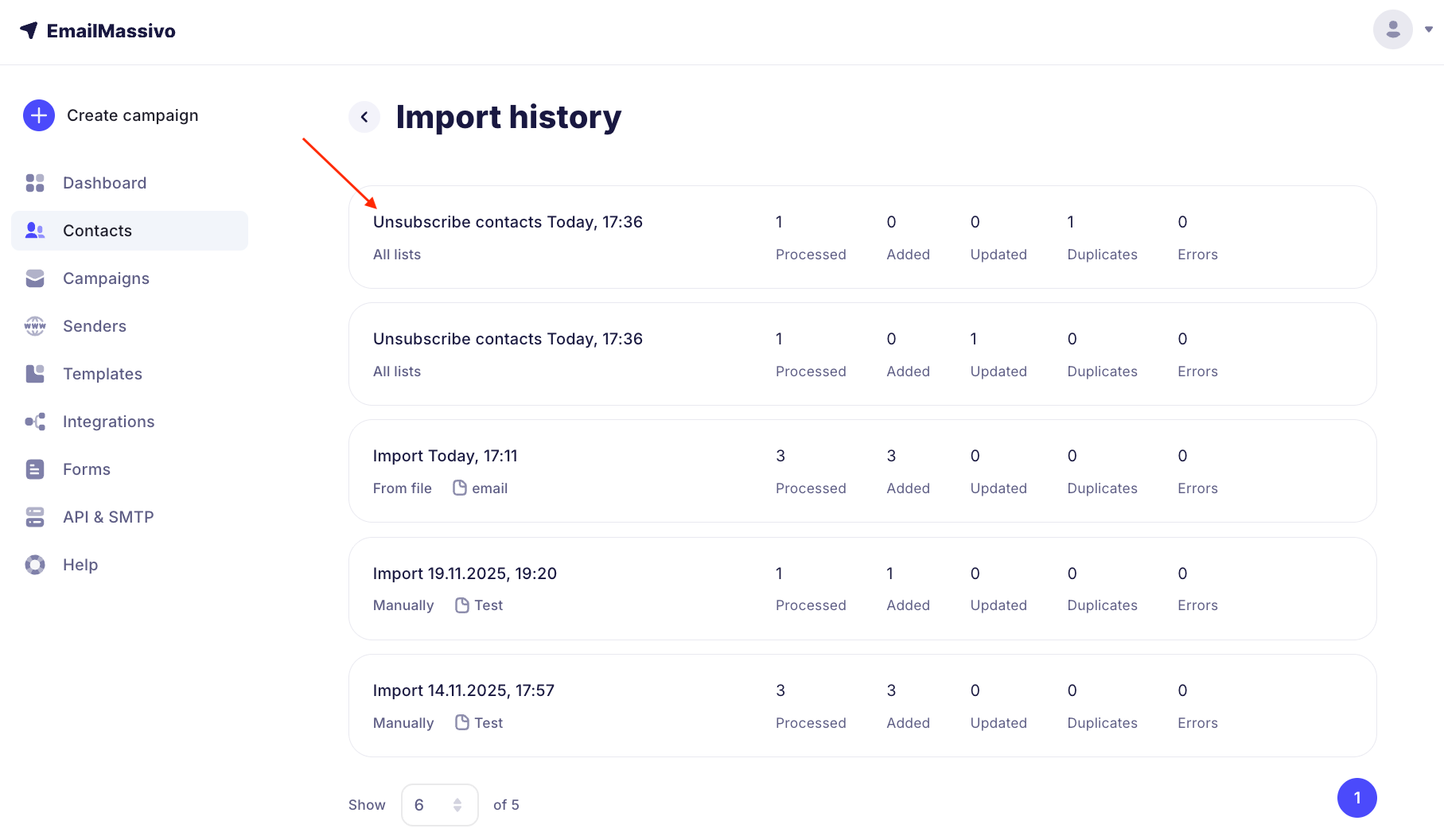
You can view the import history of unsubscribed contacts in the corresponding section:
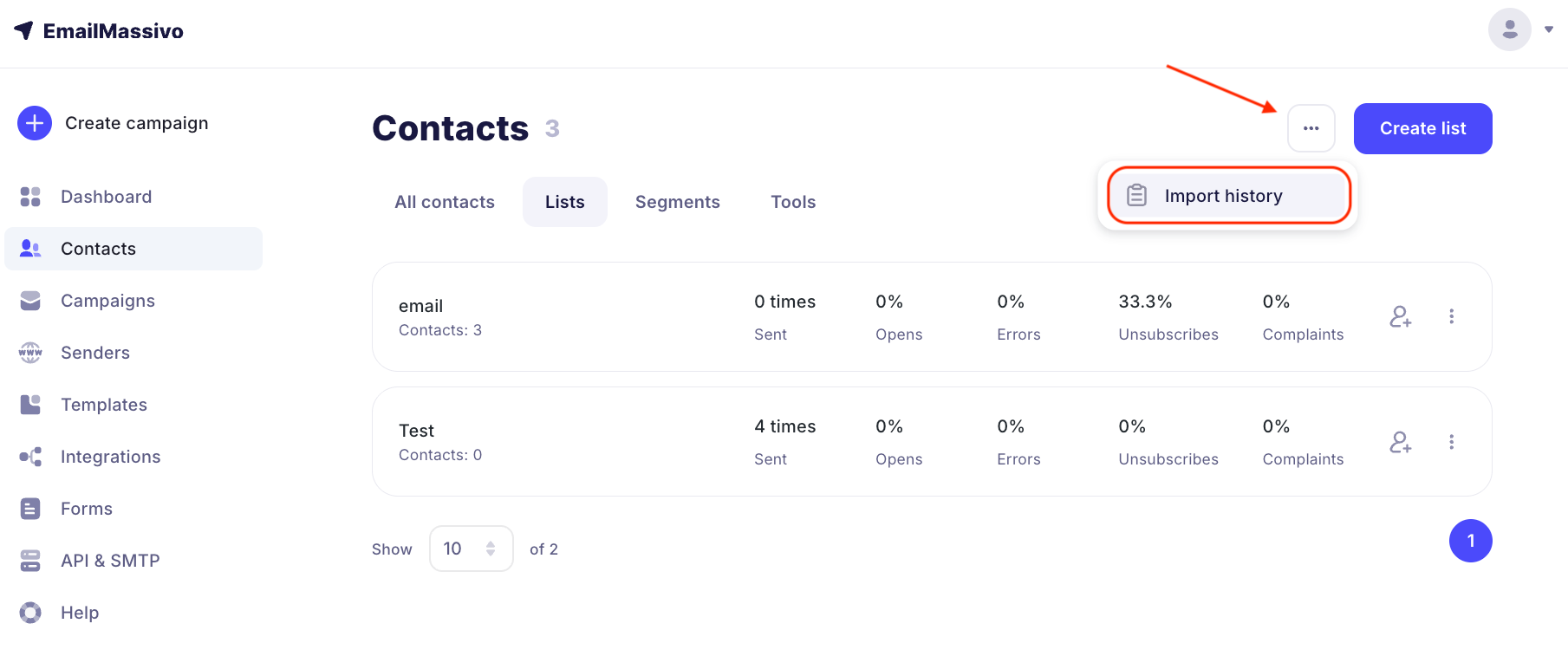
Here you can view the date and time of importing unsubscribed contacts, as well as whether there were any errors during import: