¶ How to Create a Subscription Form
You can add email subscribers to your database using a subscription form — simply place it on your website or blog page.
In this article, we'll look at how to create a simple subscription form in the simplified EmailMassivo editor.
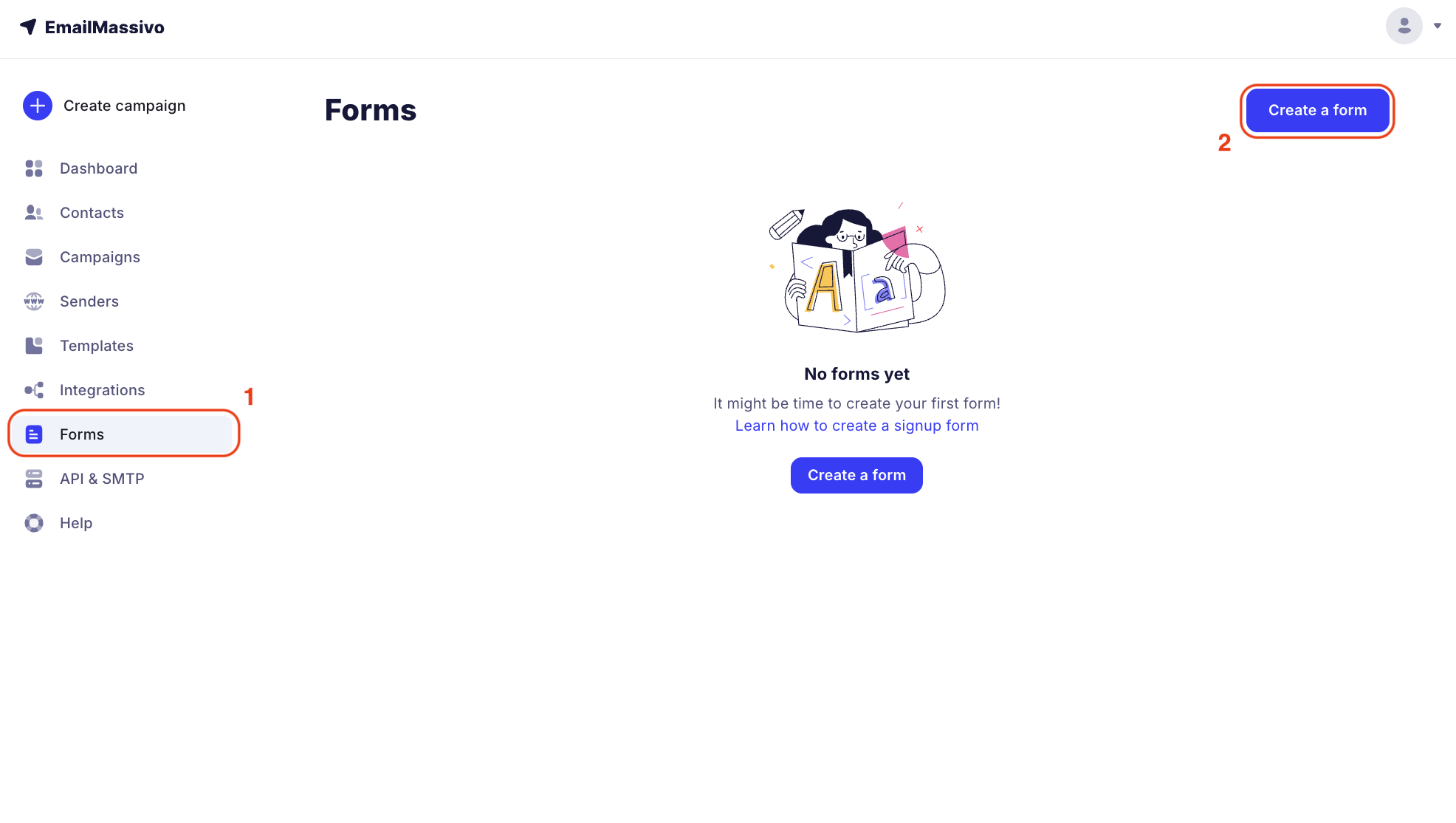
To start creating a subscription form, go to the "Forms" section and click the "Create a form" button.
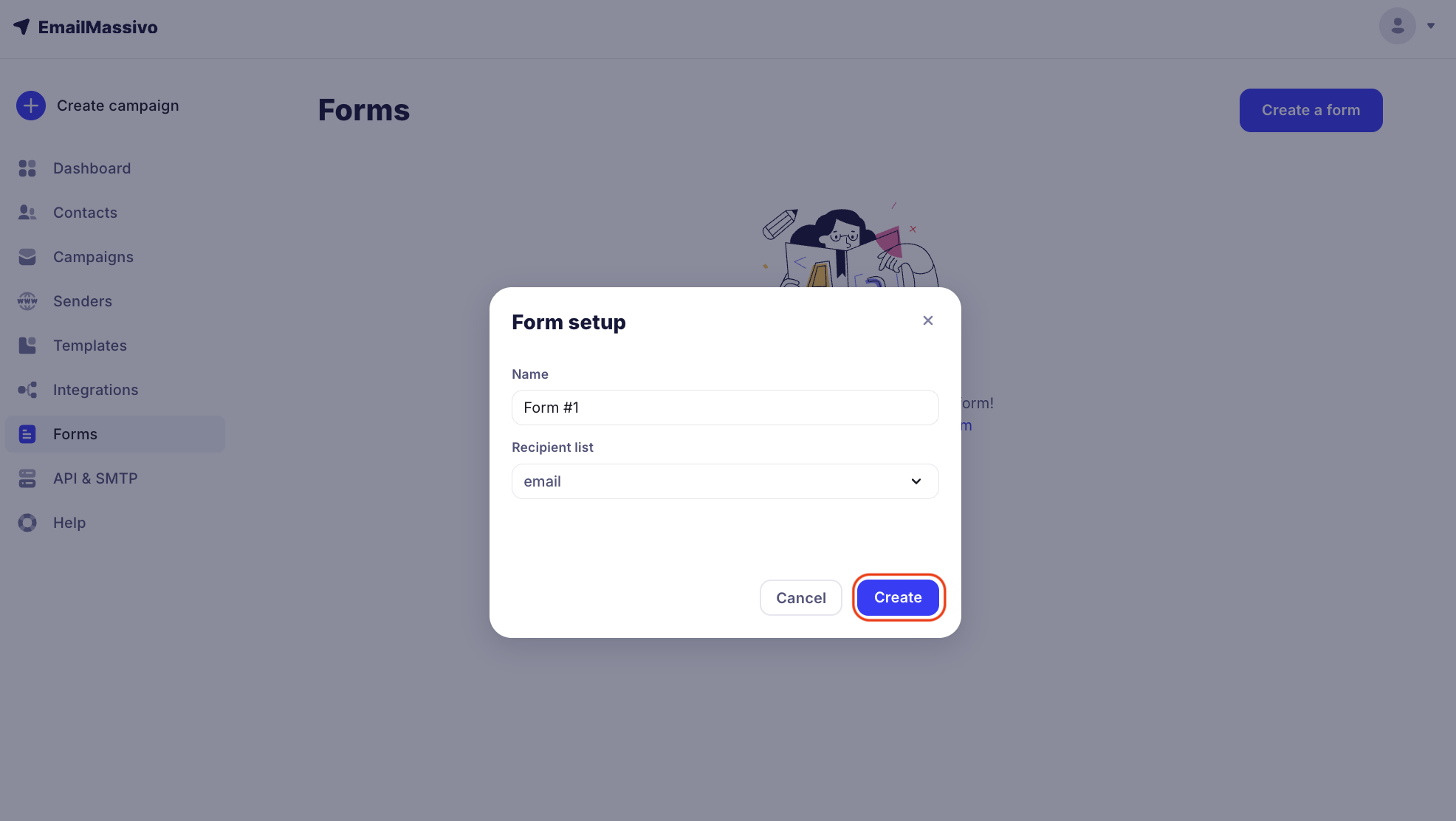
Next, a form settings window will open. Enter a name and select a recipient list. If there is no list, you need to create one. The list is needed so that all subscribers from a specific form are added to this list, and in the future you can send campaigns to this contact database. Click the "Create" button.
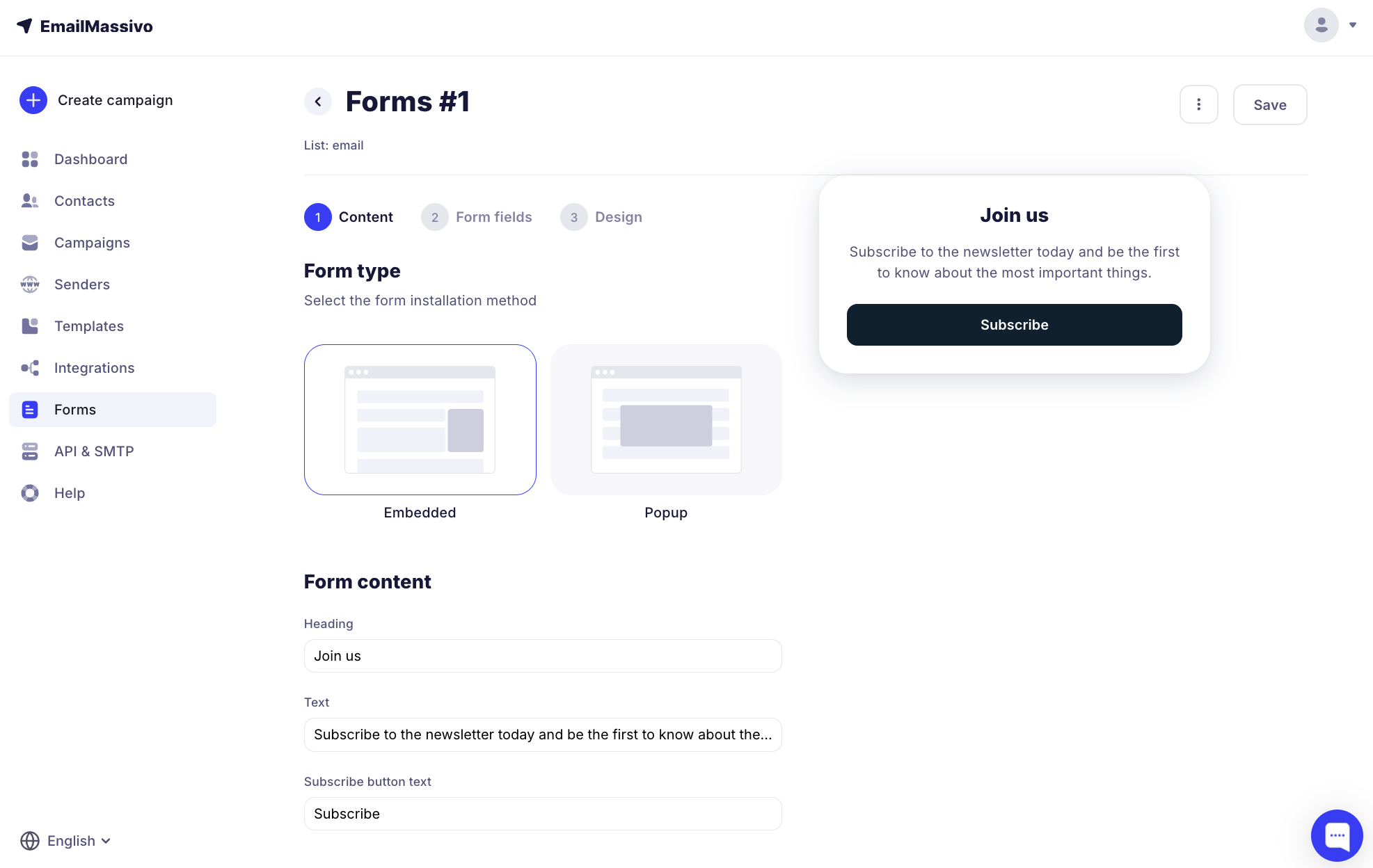
Now you can proceed to editing. Select the form type:
- embedded form — a form that can be easily inserted into your website or blog in a specific location to collect subscribers;
- pop-up form — the best tool for converting subscribers leaving your website. You can set the design, time, and conditions for the pop-up subscription form to appear on the site.
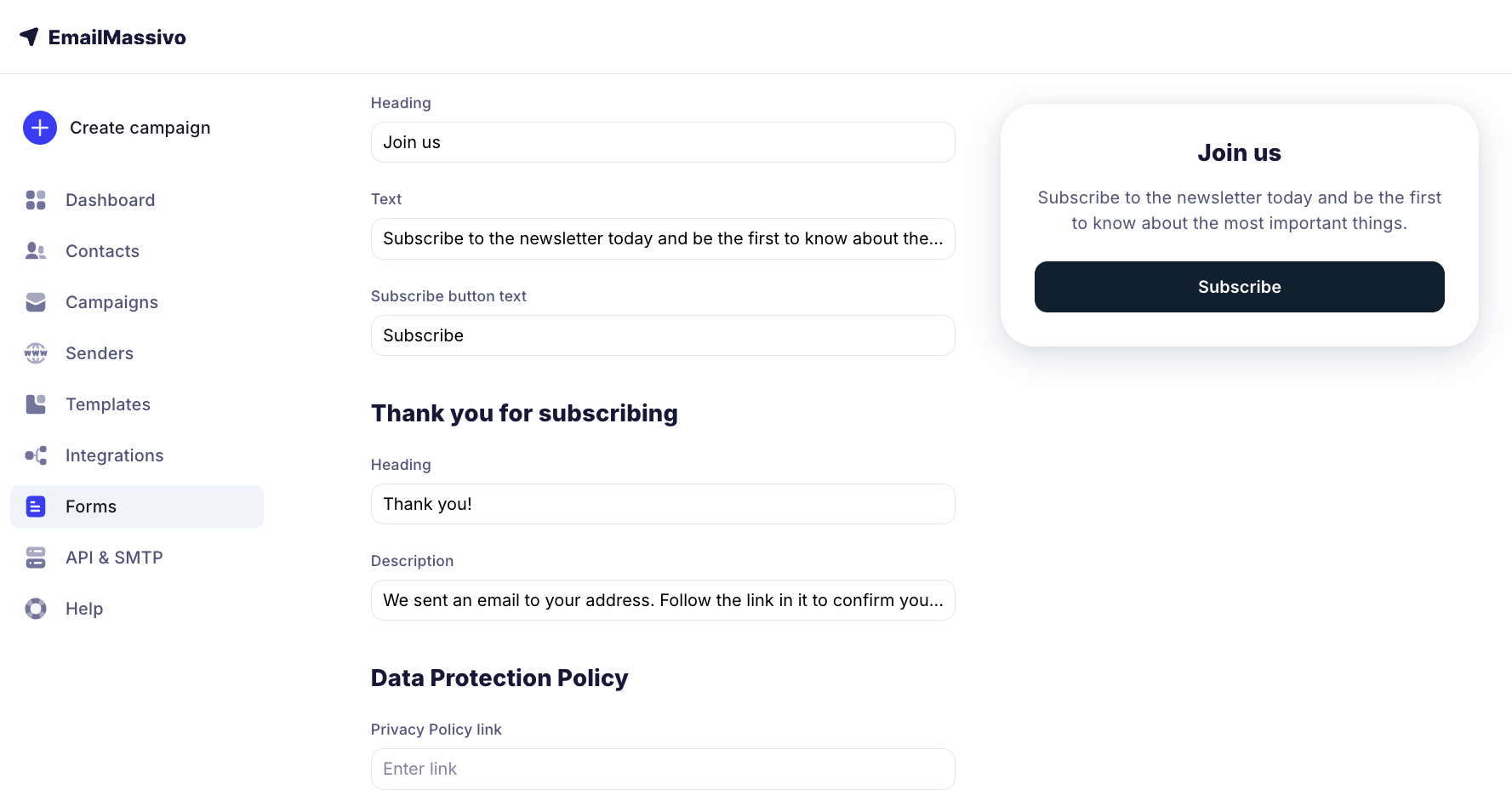
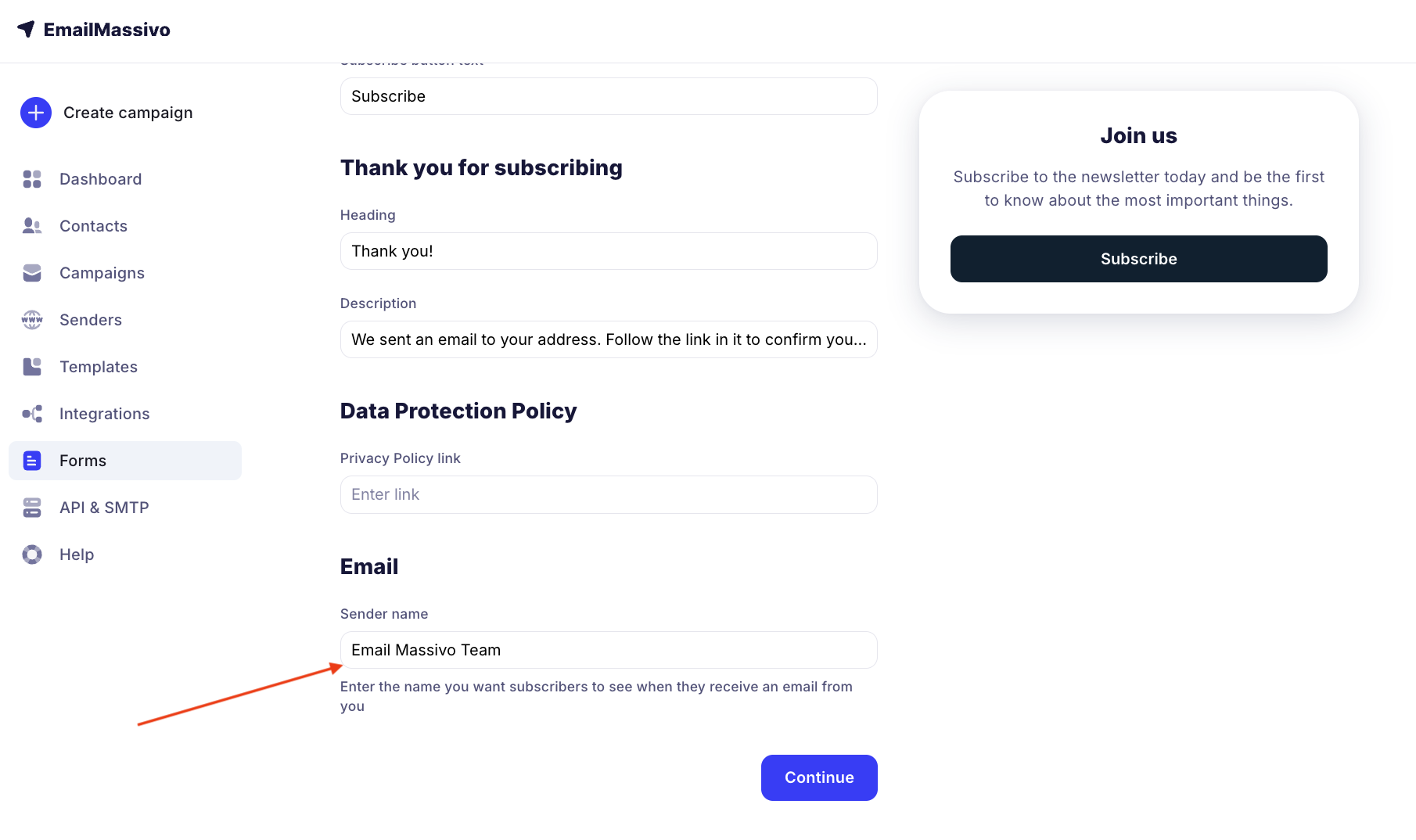
Next, you can change the form content.
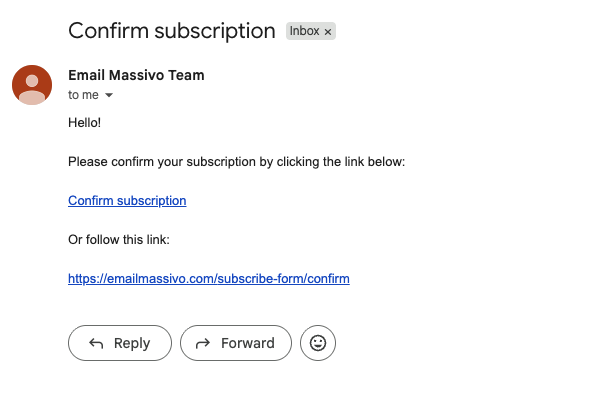
Specify the name that you want subscribers to see when they receive an email from you and click "Next".
This is how an email with a custom sender header will look:
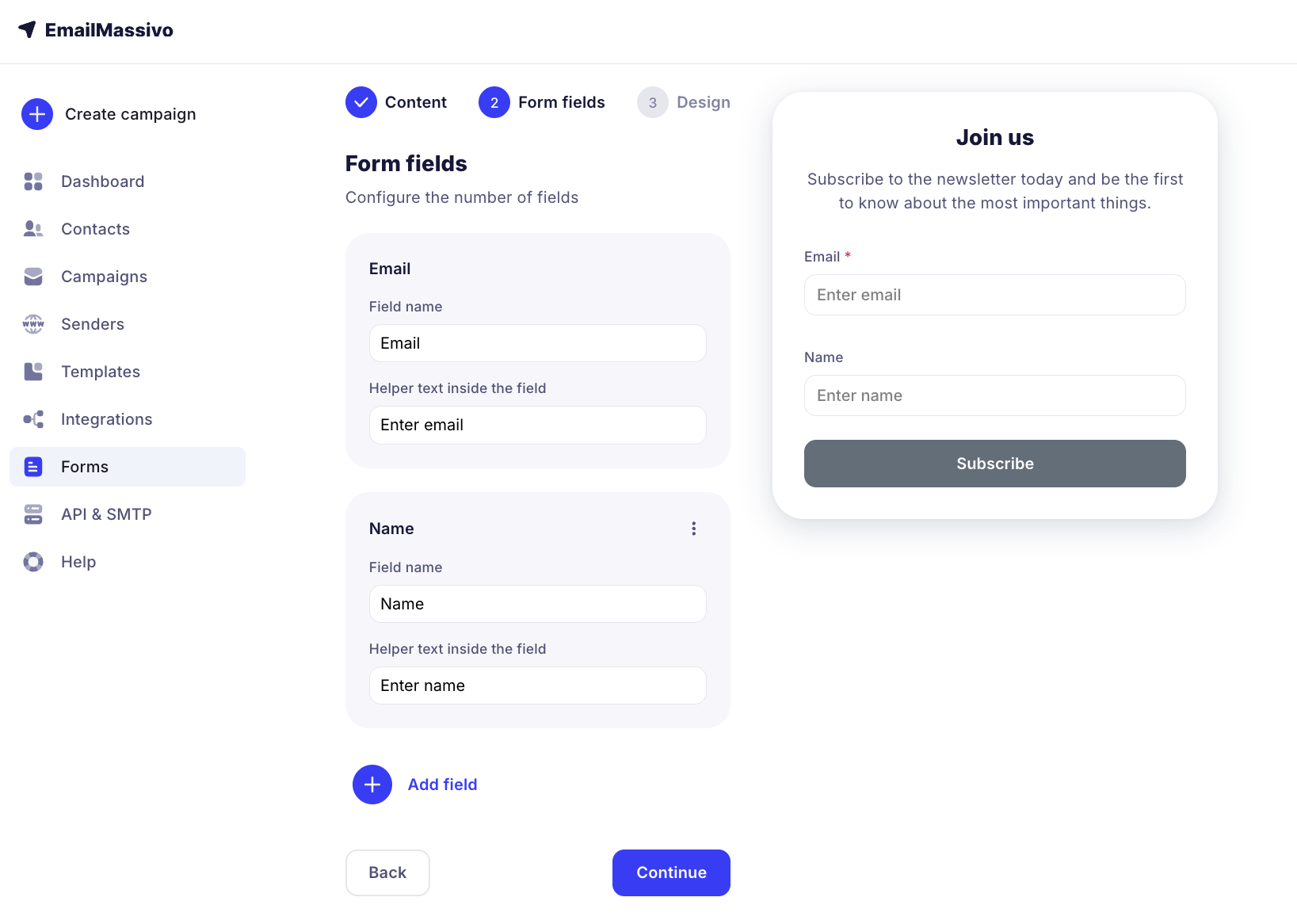
At the next stage, add custom form fields.
At the final stage, change the design settings you need and click the "Save form" button.
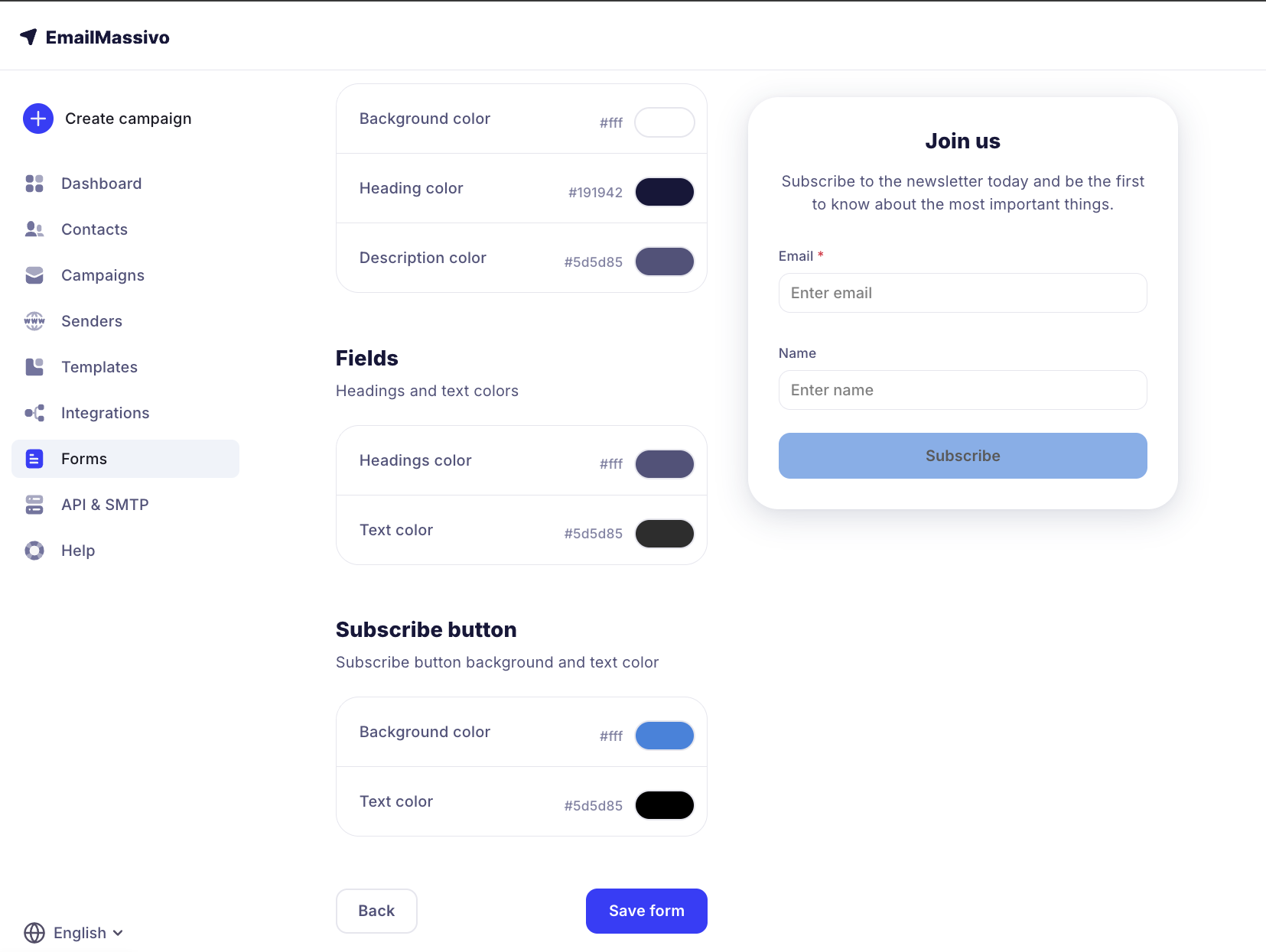
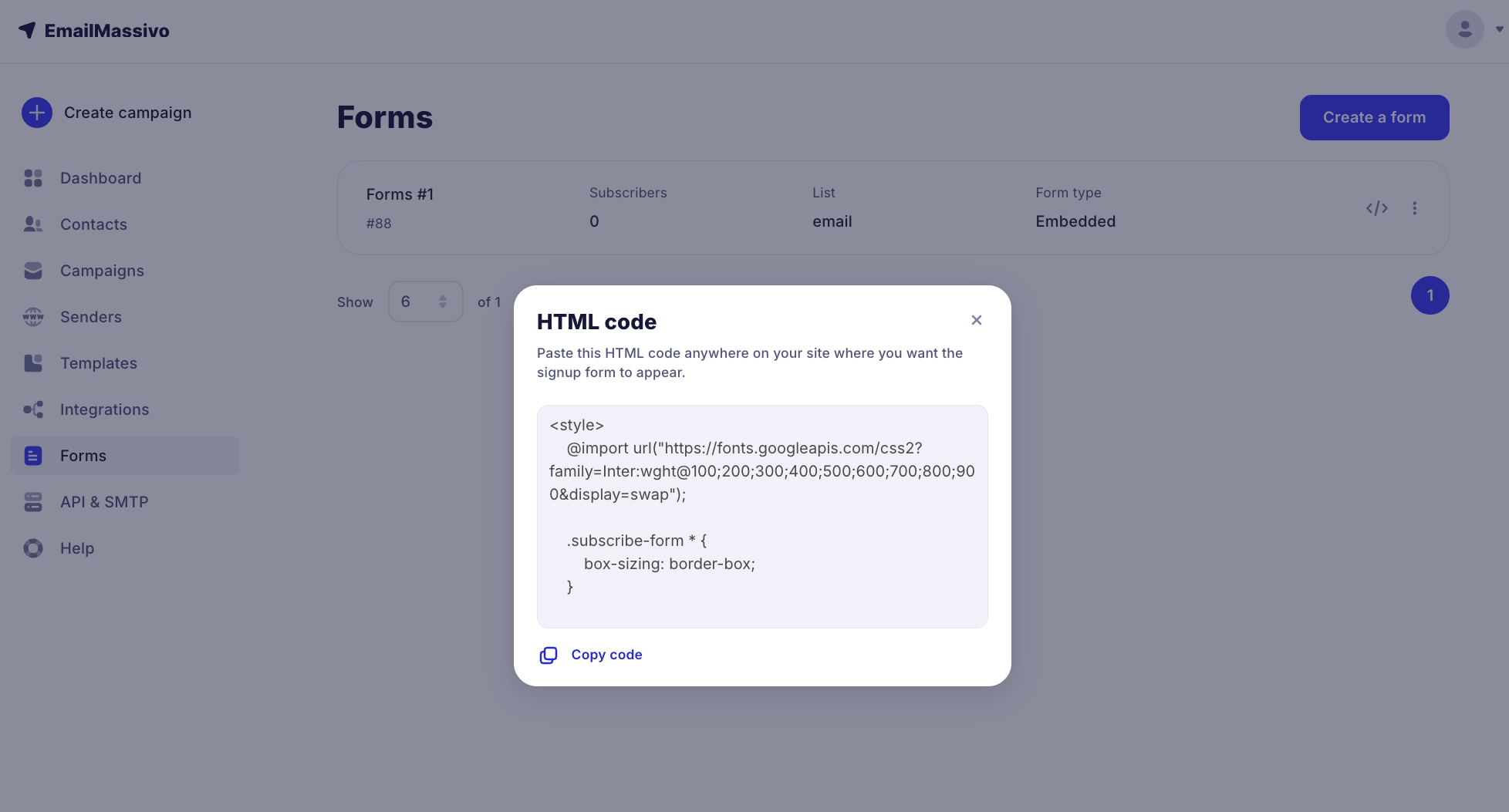
Done! Now the subscription form is created and you can place the HTML code anywhere on your website where you want to place the subscriber collection form.
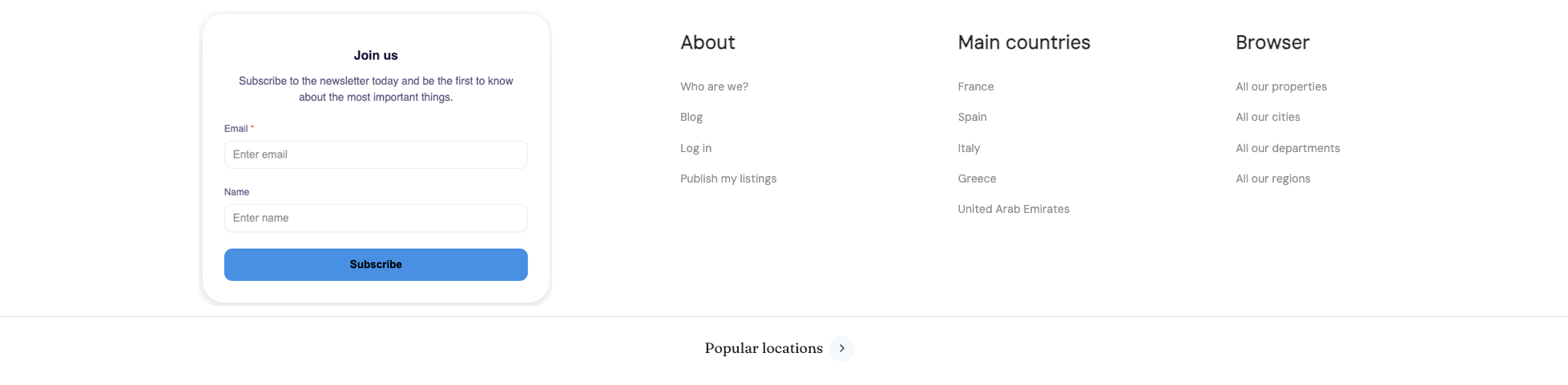
If you place the code on your website, the embedded form will look like this:
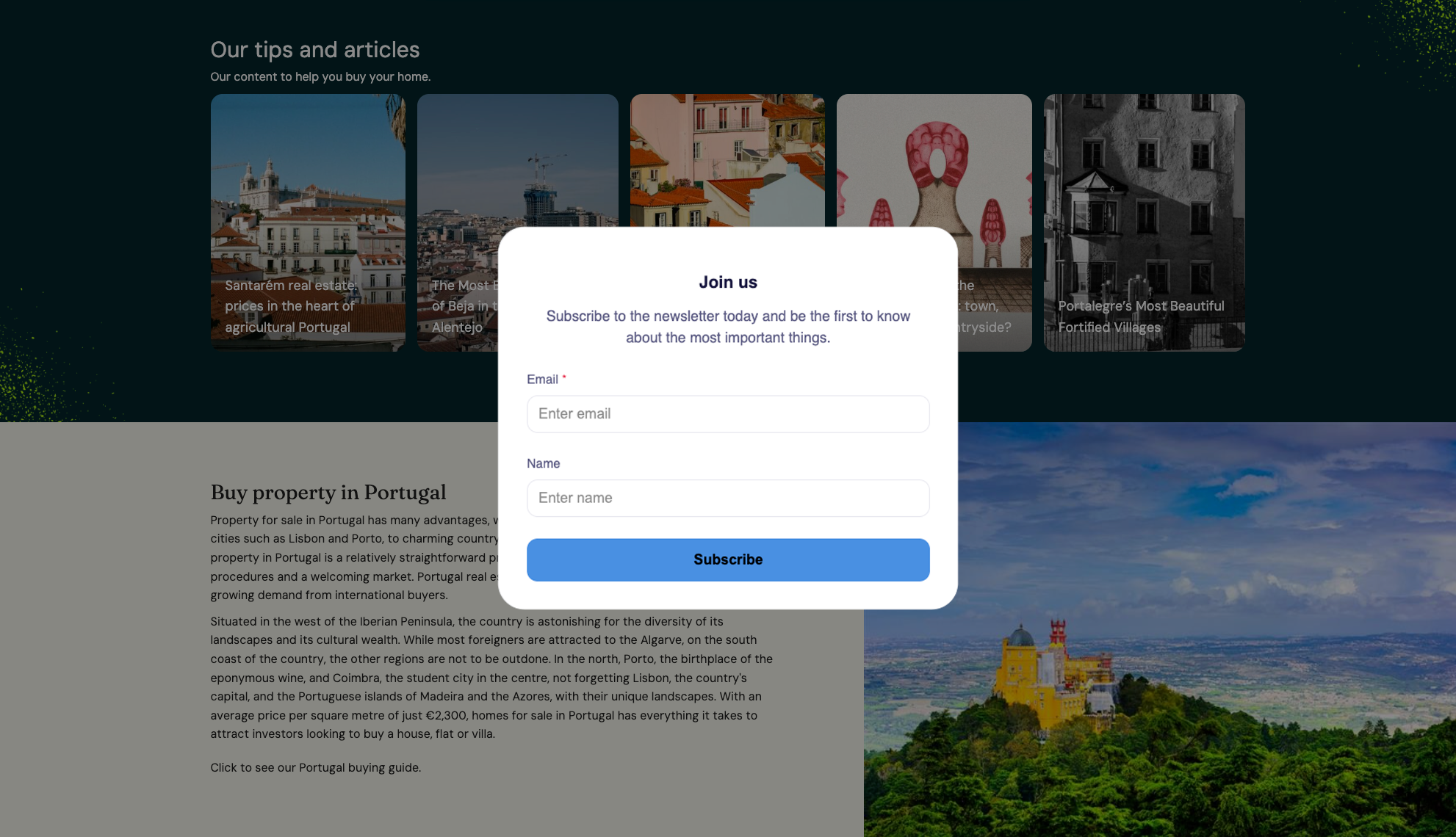
The pop-up form will look like this:
When subscribing, the user will receive an email asking them to confirm their email address. After confirming their email, the user will be added to the Contacts list in EmailMassivo.